Argo: SSO Integration Guide

Single Sign-On (SSO) allows users to authenticate once and gain access to multiple systems without re-entering credentials. In modern Kubernetes-based environments, SSO is essential for improving security, simplifying user management, and ensuring compliance.
This document provides a comprehensive overview of SSO concepts and how to integrate SSO with Argo CD and Argo Workflows.
Best Practices for SSO Integration
When integrating authentication and authorization mechanisms into your environment, it is important to follow certain best practices to ensure a secure and reliable setup:
-
Use a trusted and compliant OIDC provider that supports the required flows and claims.
-
Always enforce HTTPS to protect data in transit.
-
Use valid TLS certificate chains (avoid self-signed certificates).
-
Regularly review RBAC policies to maintain least-privilege access.
-
Define appropriate lifetimes for tokens, cookies, and sessions, and enforce refresh where possible.
-
Map groups instead of assigning permissions to individual users.
-
Create separate client credentials or subscriptions for different applications (e.g., Argo CD and Argo Workflows) to isolate access and permissions.
-
Test the SSO configuration in a staging environment before deploying to production.
OIDC Provider Setup
To enable Single Sign-On (SSO) for Argo applications, you need an OpenID Connect (OIDC) 1.0 compliant provider.
The official Argo CD User Management documentation provides detailed guides for configuring popular OIDC providers, including Microsoft, Google, Okta, Keycloak, Auth0, and others. Argo Workflows follows a similar process for setting up OIDC providers. The main difference is that Argo CD uses the callback endpoint /auth/callback, whereas Argo Workflows uses /oauth2/callback by default.
|
To configure an OIDC provider for Argo CD and Argo Workflows, register a new application or client for each. Both applications use the OAuth 2.0 Authorization Code flow for secure authentication, relying on ID Tokens for identity verification. Specific scopes are requested, and certain claims must be included in the ID Token for complete user identification. The groups claim can be included in the ID Token or retrieved from the UserInfo endpoint.
Configure the following scopes, claims, and redirect URIs for each application in the OIDC provider:
| Application | Requested Scopes | ID Token Claims Required | Redirect URIs |
|---|---|---|---|
Argo CD |
|
|
|
Argo Workflows |
|
|
The following describes the requested scopes and claims in more detail:
-
openid– Required for OIDC authentication. -
profile– Provides user profile data (e.g.,name,preferred_username). -
email– Provides the user’s email address. -
groups– Enables Argo tools to retrieve user group memberships for access control.
If you plan to use the Argo CD CLI, you should register an additional client in the OIDC provider with the following settings:
| Application | Requested Scopes | ID Token Claims Required | Redirect URIs |
|---|---|---|---|
Argo CD CLI |
|
|
|
SSO in Argo CD
Argo CD natively supports OIDC-based authentication.
This can be integrated either through a direct OIDC connection or by using the embedded Dex server. We strongly recommend using an external OIDC provider directly, as this simplifies both the architecture and configuration. In this setup, the Dex server can be fully disabled and omitted from the deployment.
Configuration Steps
Argo CD can be configured through a set of Kubernetes resources, mainly the argocd-cm, argocd-cmd-params-cm, and argocd-secret. Depending on how Argo CD was installed (Helm, Kustomize, Operator, or the official manifests), the method for managing these configurations may differ, but ultimately, they are applied through these ConfigMaps and Secrets.
In the next steps, we will cover the final configuration of these resources as the source of truth for customizing Argo CD.
-
Store the OIDC client credentials in the existing
argocd-secretSecret.The client credentials (Client ID and Client Secret) registered with the OIDC provider should be securely stored in a Secret so they can be referenced and used by Argo CD.
Although OIDC credentials can be stored directly in the argocd-cmConfigMap, it is strongly recommended to store sensitive data, such as client secrets, in theargocd-secretSecret for improved security.apiVersion: v1 kind: Secret metadata: name: argocd-secret namespace: <argocd-namespace> labels: app.kubernetes.io/name: argocd-secret app.kubernetes.io/part-of: argocd type: Opaque data: ... # Client ID registered in the OIDC provider (base64-encoded) oidc.clientID: <client-id-base64-encoded> # Client Secret registered in the OIDC provider (base64-encoded) oidc.clientSecret: <client-secret-base64-encoded> ...You can also create a dedicated Secret for this purpose. More information is available in the official documentation: Argo CD Sensitive Data and SSO Client Secrets. -
Enable and configure OIDC settings in the
argocd-cmConfigMap.The Argo CD configurations need to be adjusted to enable OIDC authentication and define the connection to the OIDC provider.
apiVersion: v1
kind: ConfigMap
metadata:
  name: argocd-cm
  namespace: <argocd-namespace>
data:
  ...
  # Optional: disable the default admin local-user for improved security.
  admin.enabled: <true|false>

  # Public URL of the Argo CD server. Usually this is automatically set by the Helm chart or Operator.
  url: https://<argo-cd-url>

  # Optional: skip TLS verification for the OIDC provider (not recommended)
  oidc.tls.insecure.skip.verify: <true|false>

  # OIDC configuration field
  oidc.config: |

    # OIDC provider name that will be shown in the login screen
    name: <OIDC provider name>

    # OIDC issuer url (must support OIDC discovery)
    issuer: https://<oidc-provider-url>

    # Client credentials reference (stored in argocd-secret)
    clientID: $oidc.clientID
    clientSecret: $oidc.clientSecret

    # Optional: Client ID for CLI access (if you want to use the Argo CD CLI with OIDC authentication)
    cliClientID:  <cli-client-id | $oidc.cliClientID >

    # Optional: Set of OIDC scopes to request. If omitted, defaults to: ["openid", "profile", "email", "groups"]
    requestedScopes: ["openid", "profile", "email", "groups"]

    # Optional: PKCE is an OIDC extension to prevent authorization code interception attacks.
    # Make sure the identity provider supports it and that it is activated for Argo CD OIDC client.
    enablePKCEAuthentication: <true|false>

    # Optional: Some OIDC providers don't return the group information for a user in the ID token.
    # With the following config, Argo CD queries the user info endpoint during login for groups information of a user.
    enableUserInfoGroups: <true|false>
    userInfoPath: <userinfo-endpoint-path>

    # Optional: Configuring a custom logout URL for your OIDC provider
    logoutURL: https://<oidc-provider-url>/<logout-endpoint>>

    # Optional: If your OIDC provider is setup with a certificate which is not signed by one of the well-known certificate authorities, you can provide a custom certificate.
    rootCA: |
      -----BEGIN CERTIFICATE-----
      ... encoded certificate data here ...
      -----END CERTIFICATE-----
  ...
These are the essential settings for enabling OIDC in most scenarios. Depending on your OIDC provider, additional configuration may be required. For more details, refer to the official documentation: Argo CD OIDC Configuration. -
Define the Argo CD Roles in
argocd-rbac-cmConfigMap:The Argo CD RBAC policies must be updated to map OIDC groups to Argo CD roles, ensuring proper access control for users.
apiVersion: v1
kind: ConfigMap
metadata:
  name: argocd-rbac-cm
  namespace: <argocd-namespace>
data:
  policy.csv: |
    ...

    # Define custom roles for OIDC groups, using pre-defined Argo CD roles.
    # role:admin - full admin access
    # role:readonly - read-only access
    g, <oidc-deployment-group-name>, role:admin
    g, <oidc-viewers-group-name>, role:readonly

  # Optional: Specifies list of OIDC scopes to examine during RBAC enforcement (in addition to sub scope). If omitted, it defaults to '[groups]'.
  scopes: "[groups]"
  ...
You can extend the RBAC policies as needed to create custom roles and permissions. For more information, refer to the official documentation: Argo CD RBAC Documentation.
Login and Access via OIDC
Once the OIDC provider is configured, users can log in to the Argo CD Web UI by clicking the "LOG IN VIA <OIDC Provider Name>" button on the login screen. This will redirect them to the OIDC provider’s authentication page.
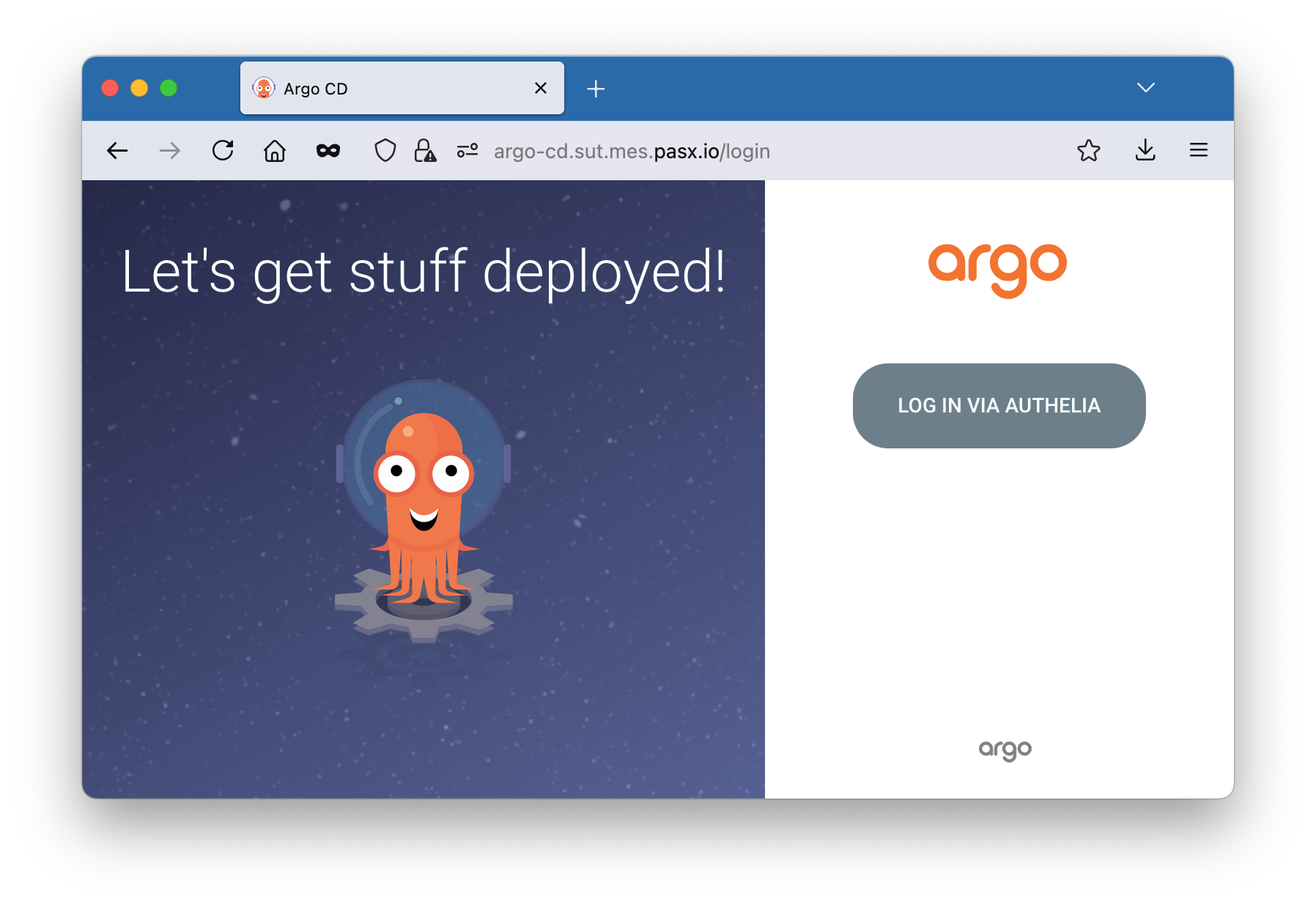
After successful authentication, users will be redirected back to Argo CD and granted access based on their group memberships and the defined RBAC policies.
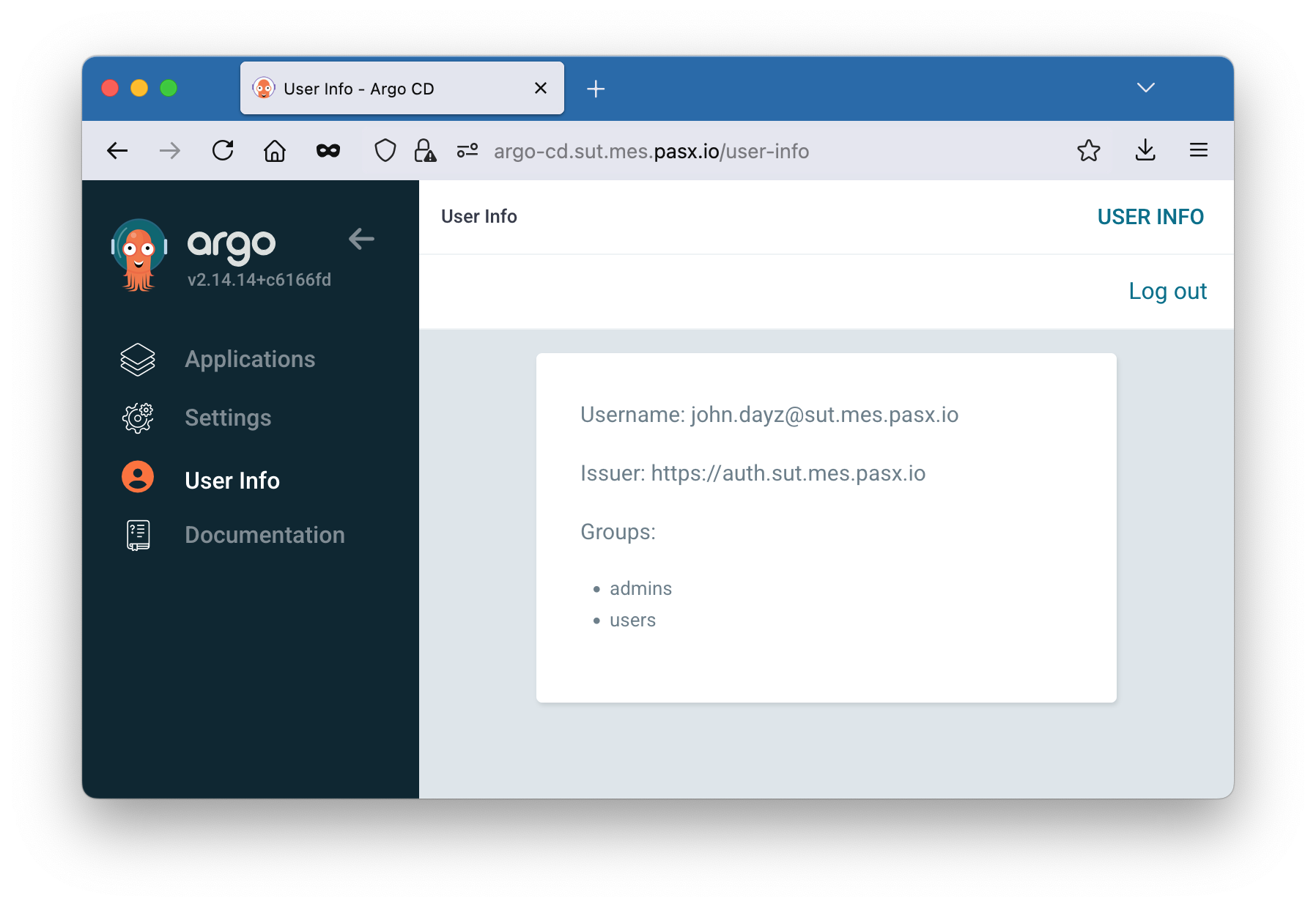
To verify that user information and group memberships are correctly retrieved from the OIDC provider, you can visit the UserInfo page in the Argo CD Web UI.
Login via Argo CD CLI
The Argo CD CLI can also be used to log in via OIDC. Run the following command to initiate the login process:
argocd login https://<argo-cd-url> --ssoThis command will open a browser window for authentication. After successful login, the CLI obtains the required tokens to interact with Argo CD.
SSO in Argo Workflows
Argo Workflows also natively supports OIDC-based authentication. Since this component is included as part of the Körber PAS-X MES deployment, the pasx-argo-workflows Helm chart is prepared to configure OIDC settings. Detailed values-schema documentation can be found in the PAS-X Argo Workflows Values Schema documentation page.
Configuration Steps
Argo Workflows is configured via Helm chart values. The following steps describe the configuration needed to enable OIDC for Argo Workflows.
-
Create a new Kubernetes Secret to store the OIDC client credentials.
The client credentials (Client ID and Client Secret) registered with the OIDC provider should be securely stored in a Secret within the same namespace as the application, allowing Argo Workflows to reference it. The secret should have two keys:
client-idandclient-secret.apiVersion: v1 kind: Secret metadata: name: argo-workflows-sso-client-credentials namespace: <argoworkflows-namespace> type: Opaque stringData: # Client ID registered in the OIDC provider client-id: <client-id> # Client Secret registered in the OIDC provider client-secret: <client-secret> -
Enable and configure SSO settings in the
values.yamlfile of thepasx-argo-workflowsHelm chart.The Helm chart values must be adjusted to enable SSO and define the connection to the OIDC provider. This configuration is specified in the
ssoblock of the values file.sso: # Enable SSO integration (default: false) enabled: <true|false> # OIDC issuer url issuer: https://<oidc-provider-url> # Argo Workflows Redirect URL for OIDC authentication. This should match the redirect URL configured in your OIDC provider redirectURL: "https://<argo-workflows-url>/oauth2/callback" # Additional OIDC scopes to request during authentication (in addition to the default "openid" scope) scopes: - profile - email - groups - openid # Optional: Session Expiry duration (in hours). If not set, your SSO session will expire after 10 hours sessionExpiry: 24 # Optional: Path to the userinfo endpoint # If your OIDC provider provides groups information only using the user-info endpoint, you could configure userInfoPath to specify the user info endpoint userInfoPath: "<userinfo-endpoint-path>" # Optional: Skip TLS certificate verification when connecting to the OIDC provider (not recommended - default: false) insecureSkipVerify: <true|false> # Name of the Kubernetes secret containing the OIDC client ID and client secret clientCredentialsSecretName: "<argo-workflows-sso-client-credentials>" # OIDC groups mapping configuration for Argo Workflows roles groups: # Optional: Custom claim name to extract user groups. If your OIDC provider provides groups information with a claim name other than 'groups' customClaimName: "<special-group-claim>" # Name of the OIDC group that will be mapped to the 'read-only' role in Argo Workflows readOnly: "<oidc-viewers-group-name>" # Name of the OIDC group that will be mapped to the 'admin' role in Argo Workflows admin: "<oidc-deployment-group-name>"
Login and Access via OIDC
After configuring the OIDC provider, users can log in to the Argo Workflows Web UI by selecting the "Login" button in the "Single Sign-On" section. This will redirect them to the OIDC provider’s authentication page.
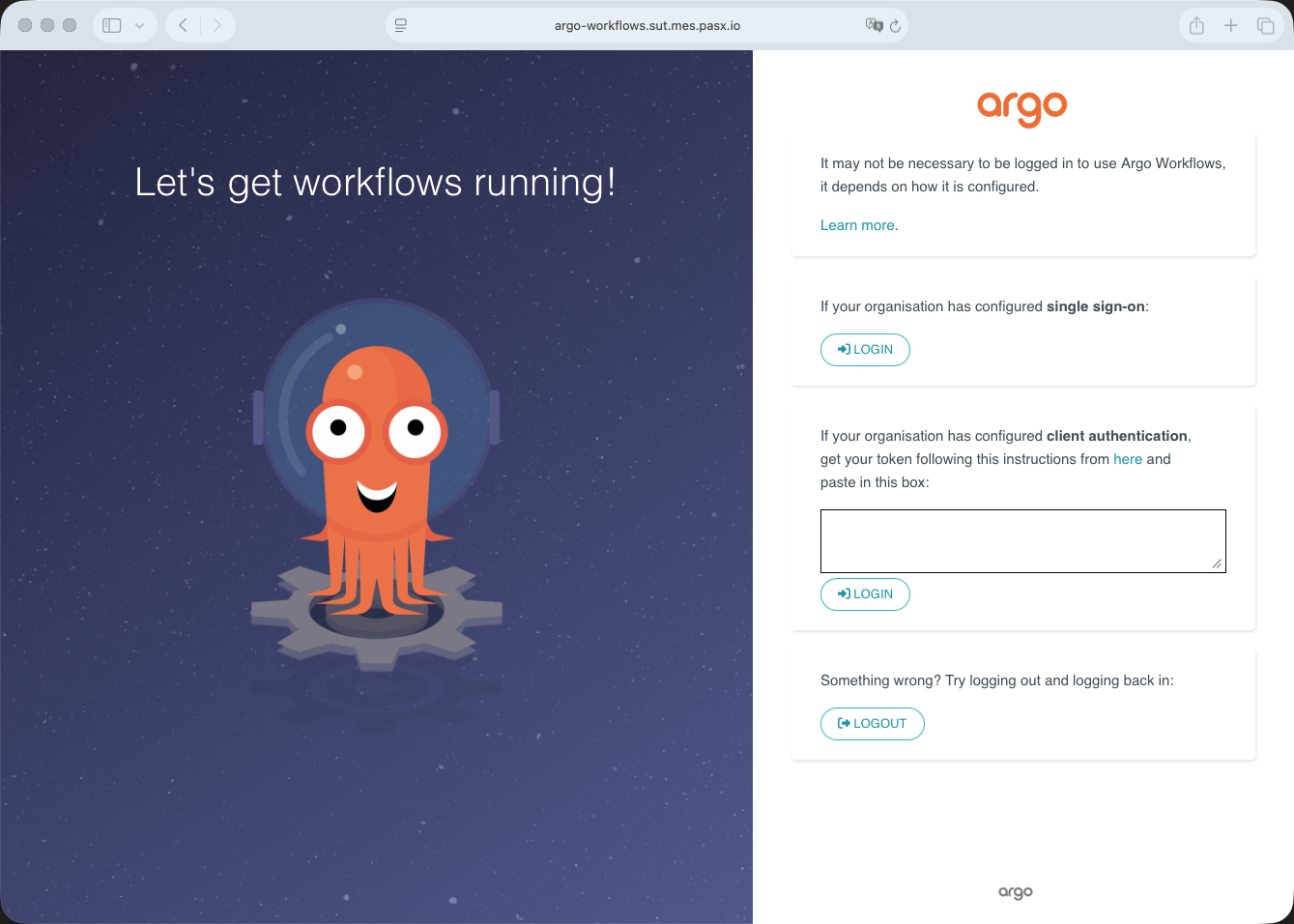
After successful authentication, users are redirected back to Argo Workflows and granted access according to their group memberships and the defined RBAC policies.
To confirm that user information and group memberships are correctly retrieved from the OIDC provider, you can visit the UserInfo page in the Argo Workflows Web UI.
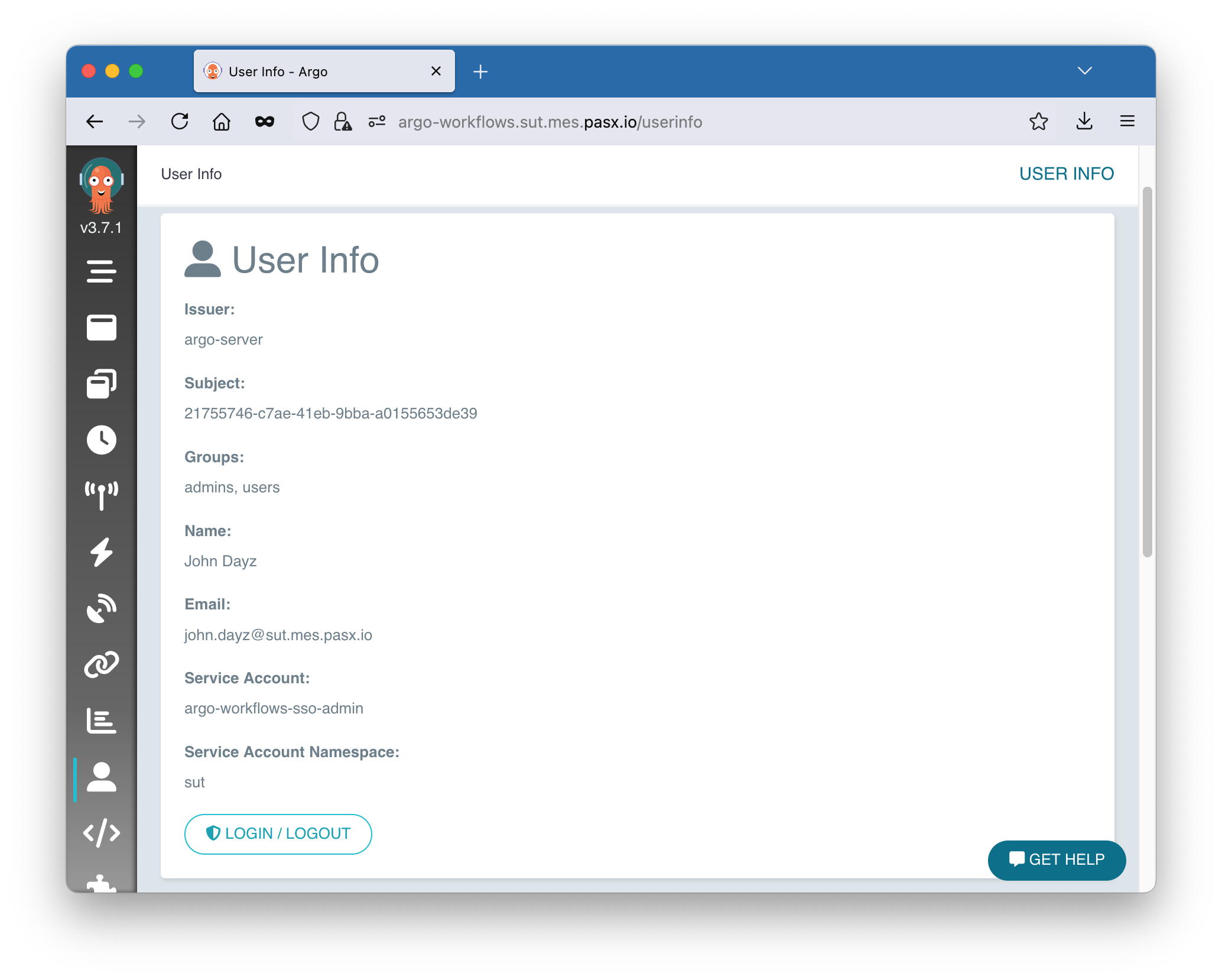
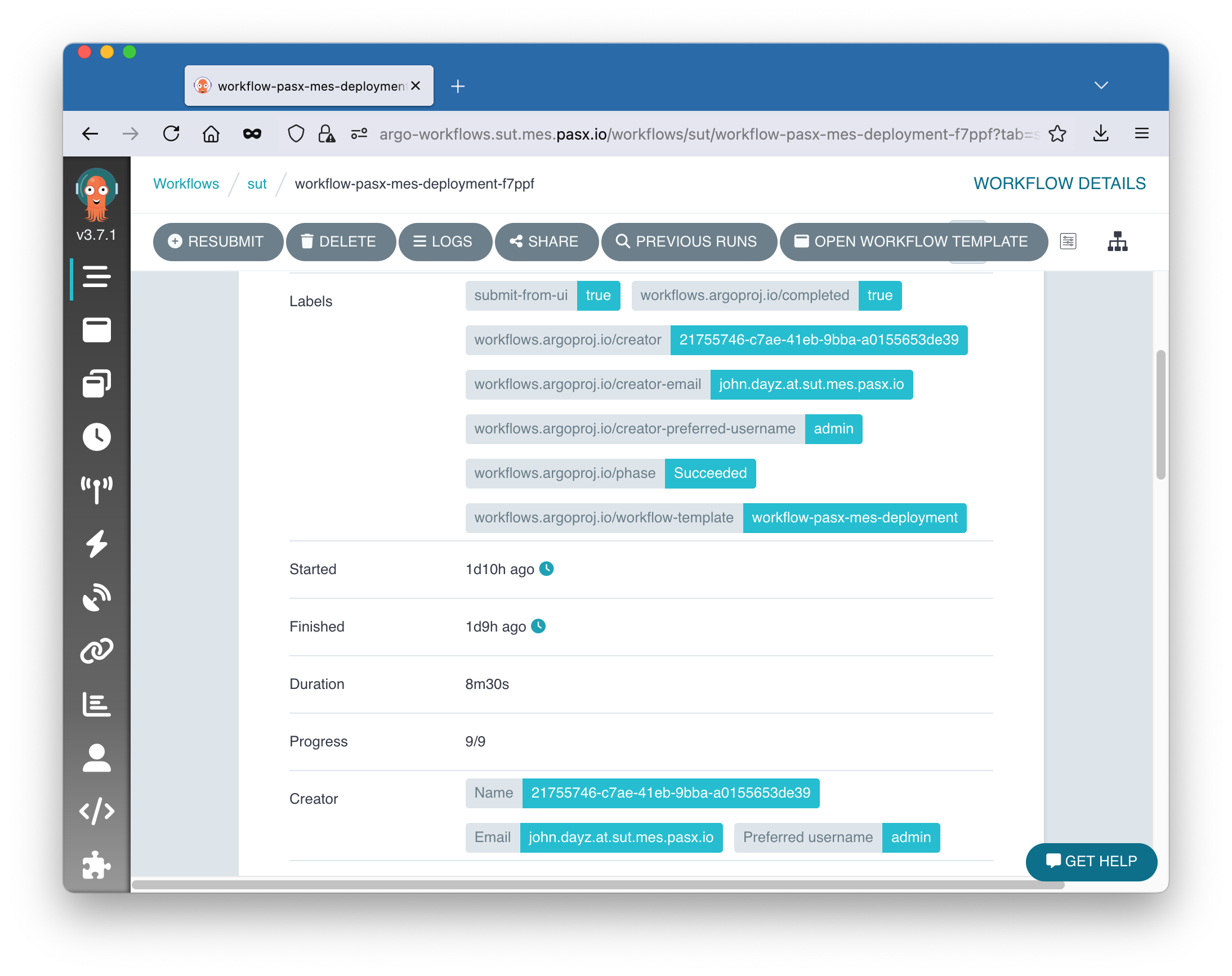
When executing workflows, the authenticated user’s identity is recorded in the workflow metadata, providing auditability and traceability of all actions performed. This information appears in the "Labels" and "Creator" sections of the workflow details.